
Complete Guide: How to Remove Malware From a Windows PC
Malware is one of the biggest threats to computers today. From slowing down your system to stealing passwords, displaying unwanted ads, tracking your online activity, or even causing complete data loss—malware can be extremely dangerous. Whether it’s spyware, ransomware, trojans, or adware, every form of malware puts your privacy and security at risk.
The good news is that you can remove most types of malware from a Windows PC using simple tools and proven steps—without needing a technician. This complete guide will show you how to remove malware safely and completely.
1. Disconnect From the Internet Immediately
This guide explains how to remove malware from Windows safely and completely
Why this is important:
- Malware often communicates with remote servers
- Hackers can steal data in real time
- Malware may download more harmful files
Turn off Wi-Fi or unplug the Ethernet cable before moving to the next step.
2. Enter Safe Mode
Safe Mode prevents most malware from running at startup, making removal much easier.
How to Enter Safe Mode:
- Go to Settings → System → Recovery
- Click Restart now under Advanced Startup
- Select Troubleshoot → Advanced Options
- Choose Startup Settings → Restart
- Press 4 to enter Safe Mode
In Safe Mode, only essential Windows services run, stopping most malware processes instantly.
3. Run Windows Defender Full Scan
Windows Defender (also called Microsoft Defender) is built into Windows 10 and Windows 11 and is surprisingly powerful.
Steps:
- Open Windows Security
- Click Virus & Threat Protection
- Choose Scan Options
- Select Full Scan
- Click Scan Now
This scan can take 30–60 minutes but removes most:
- Trojans
- Spyware
- Keyloggers
- Basic ransomware
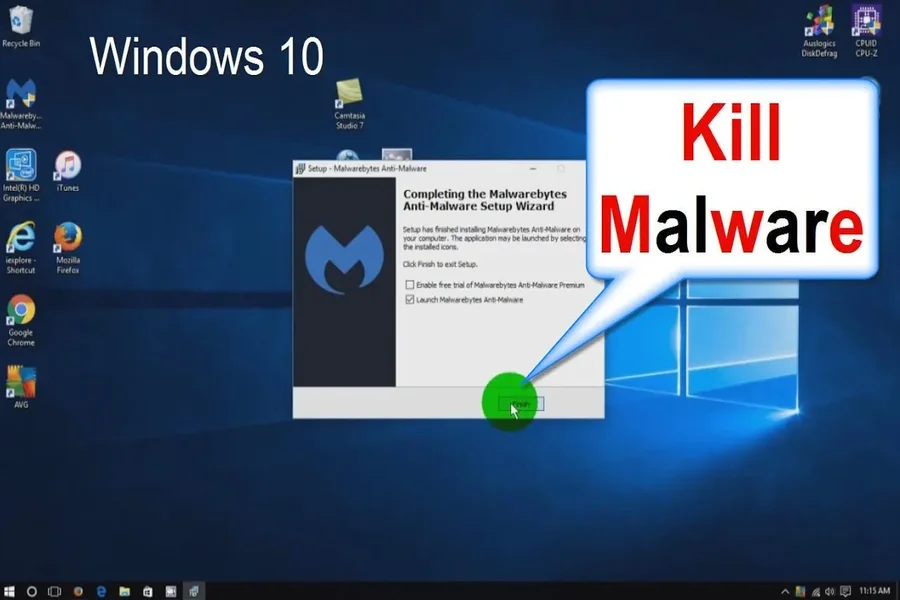
4. Use Malwarebytes for Deep Cleaning
For advanced infections, Malwarebytes is one of the most trusted tools in the world.
Why Malwarebytes is effective:
- Detects hidden malware
- Removes stubborn adware
- Finds browser hijackers
- Cleans infected registry entries
- Stops malicious background services
After installing, run a Threat Scan and remove everything it detects.
5. Remove Suspicious Programs Manually
Many infections install unwanted or fake applications without your consent.
How to check:
- Open Settings → Apps → Installed Apps
- Sort by Recently Installed
- Uninstall anything you don’t recognize
Look for:
- Fake video players
- Unknown optimizers
- Suspicious download managers
These are often bundled with malware.
6. Reset Your Browser Settings
Browser hijacking is one of the most common malware effects. It changes your homepage, shows pop-ups, and redirects searches.
Reset for:
- Google Chrome
- Microsoft Edge
What to reset:
- Remove unknown extensions
- Clear cache and cookies
- Reset homepage and search engine
This instantly removes:
- Redirect viruses
- Fake warning popups
- Ad-injection scripts
7. Delete Temporary Files
Malware often hides in temporary folders.
Delete files from:
- %temp%
- temp
- prefetch
Steps:
- Press Windows + R
- Type each folder name
- Select all files
- Delete everything safely
This helps remove leftover malicious scripts and trackers.
8. Use System Restore (If Nothing Works)
If the infection is severe and keeps returning, restoring your PC to an earlier clean state may be necessary.
What System Restore Does:
- Reverts system files to a safe date
- Removes deeply embedded malware
- Keeps your personal files safe
Choose a restore point from before the infection started.
Final Thoughts
If you carefully follow all these steps, you can successfully remove malware from your Windows PC without professional help. Regular system scans, safe browsing habits, and avoiding unknown downloads are the best ways to prevent future infections.
For maximum protection:
- Keep Windows updated
- Use Windows Defender daily
- Run Malwarebytes weekly
- Avoid cracked software and fake popups
A clean PC means faster performance, better privacy, and a safer digital life